
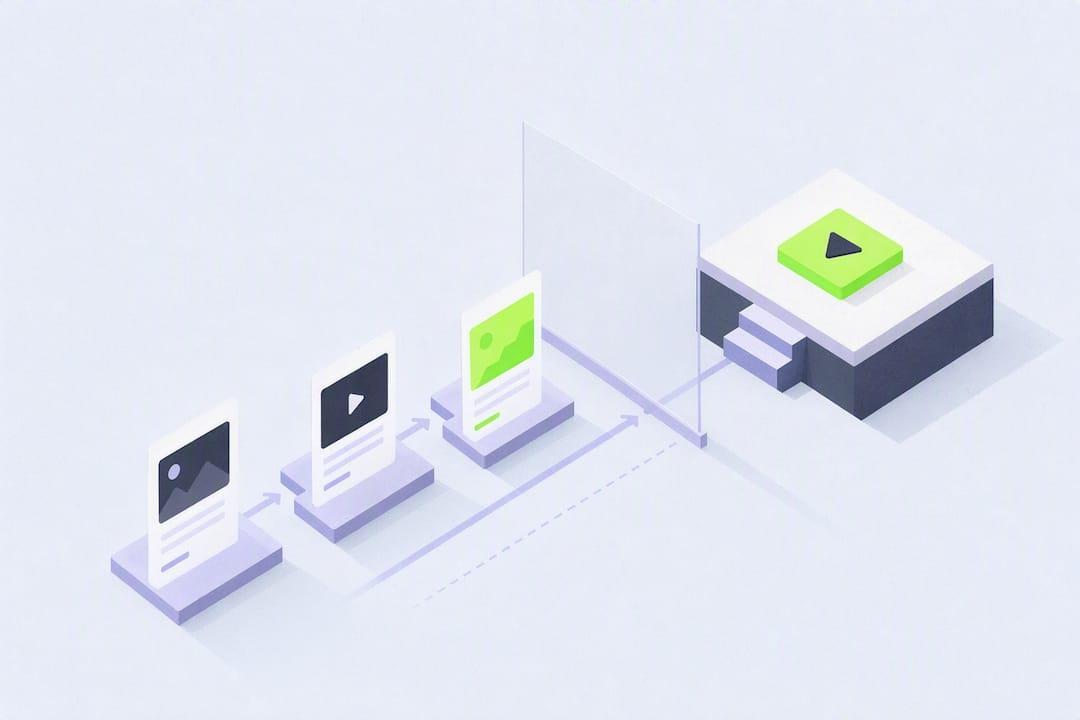
For quick, immediate scheduling, use TikTok's native desktop uploader at tiktok.com, which lets you schedule a post 15 minutes to 10 days ahead. If you need mobile scheduling, longer-range planning, or cross-posting to other platforms, a third-party scheduler with TikTok Direct Post support is the better fit. Either way, finalize your video and caption first, and confirm you have a Creator or Business account before you touch the schedule toggle.
TL;DR:
- TikTok's native desktop scheduler allows posting from 15 minutes up to 10 days in advance but only for Creator or Business accounts with advanced access.
- Mobile scheduling requires third-party tools that support true auto-post via TikTok's API, with features like content calendars, cross-posting, and analytics.
- Scheduled posts are locked once submitted, so any corrections require deleting and re-uploading; verify your timezone settings before scheduling.
- Timing influences reach, but strong content and clear hooks in videos are more critical than posting at the "best" time.
- Brainrotify automates video creation and scheduling from a script or idea, ideal for faceless channels or meme pages needing consistent content without extensive editing.
Table of Contents
- How Do You Schedule TikTok Posts From Desktop?
- Can You Schedule TikTok Posts From Your Phone?
- Native or Third-Party: Which One Should You Actually Use?
- Pre-Schedule Checklist and Common Fixes
- What Actually Makes a Scheduled Post Perform Well?
- How Brainrotify Fits Into a Scheduling Workflow
- Automate Both the Video and the Schedule With Brainrotify
- Sources
- FAQ
How Do You Schedule TikTok Posts From Desktop?
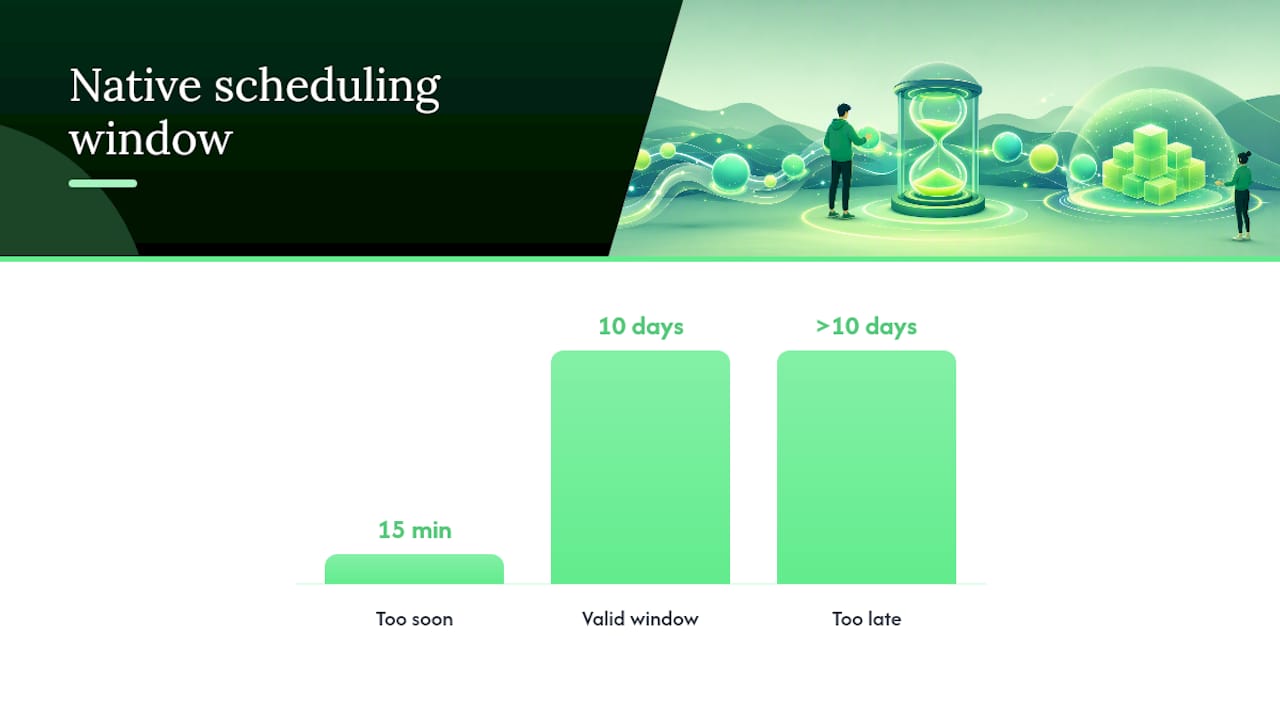
TikTok built native scheduling into its web uploader, and it works well for anyone posting from a laptop. The tool accepts scheduled posts anywhere from 15 minutes up to 10 days ahead, which covers most short-term content calendars but rules out planning a month at a time.
Here's the process, start to finish:
- Log in at tiktok.com using your Creator or Business account.
- Click Upload in the top navigation.
- Select your video file from your computer.
- Add your caption, hashtags, and choose a cover image.
- Toggle Schedule instead of leaving it on "Post now."
- Pick your date and time from the calendar picker.
- Click Schedule to lock it in.
Before any of this works, check your account type. Personal accounts don't get the scheduler at all. Switch to a Creator or Business account under Settings, and if you don't see the Schedule option even after switching, your account may need Advanced Access, sometimes labeled as the post scheduler entitlement, which TikTok rolls out gradually.
One detail trips up almost everyone the first time: scheduled posts are locked once submitted. You can't edit the caption, swap the video, or nudge the time. If something's wrong, delete the scheduled post and re-upload it correctly. Double-check your device's timezone setting too, since the scheduler uses your local time, not TikTok's server time.
Can You Schedule TikTok Posts From Your Phone?
TikTok's native scheduler only lives on desktop right now. If you're managing content from your phone, or you want to plan further out than 10 days, you need a different route: a third-party scheduler.
Two workflows exist here, and mixing them up causes real problems. Some tools use a reminder-based flow, where the app sends you a push notification at the scheduled time and you still have to open TikTok and tap post yourself. Others use TikTok's Direct Post API to publish automatically with no manual step. If a tool markets itself as "auto-posting" but actually just reminds you, you'll end up missing your own schedule. Confirm which one you're using before you build a workflow around it.
When evaluating a mobile or third-party scheduler, look for:
- True Direct Post/API auto-publish, not just reminders
- A visual content calendar you can view by week or month
- Cross-posting to other platforms from one upload
- Recommended posting times based on your account's own data
- Basic analytics so you can see what's actually working
- An approval step if you're working with a team or client
Hootsuite and similar tools are built specifically to cover the gap TikTok's own scheduler leaves open: mobile access and planning beyond 10 days.
Native or Third-Party: Which One Should You Actually Use?
The right tool depends on how far ahead you plan and where you're working from, not on which one sounds more advanced.
Native desktop scheduler:
- Free, built into TikTok, no third-party account needed
- Auto-publishes with no extra steps once scheduled
- Desktop only, no mobile app support
- Capped at a 10-day scheduling window
Third-party schedulers:
- Plan weeks or months in advance
- Work from your phone, not just a laptop
- Add analytics and recommended posting times
- Usually cost money and require connecting your account
If you're a solo creator posting a few times a week and you're near your laptop anyway, the native tool does the job for free. If you're an agency juggling multiple client accounts, or a small business owner who plans content in monthly batches, a third-party scheduler pays for itself in saved time. Sprout Social notes that professional teams tend to outgrow the native scheduler fast, mostly because of the 10-day ceiling.
Pre-Schedule Checklist and Common Fixes
Run through this before you hit schedule on anything:
- Finalize your video edit. No more changes come after this.
- Proofread your caption and hashtags for typos.
- Choose a cover image that reads clearly as a thumbnail.
- Set your privacy setting (public, unless you have a reason otherwise).
- Confirm your device's timezone matches when you actually want it to post.
When something goes wrong, it's usually one of these:
No Schedule toggle appears. You're likely on a personal account or missing Advanced Access. Switch account types in Settings and check again.
The date picker won't accept your chosen date. You're outside the 15-minute to 10-day window. Pick a date inside that range.
You need to change a scheduled post. There's no edit option. Delete it and re-upload with the correction.
A third-party tool fails to publish. Verify the tool actually uses Direct Post rather than a reminder, then check that your account connection hasn't expired.
Pro Tip: If you're not sure whether your scheduler auto-publishes or just reminds you, schedule a test post 20 minutes out and walk away from your phone. If it goes live without you touching anything, you've got true automation.
What Actually Makes a Scheduled Post Perform Well?
Scheduling only controls when a video goes live, not whether people watch it. A post scheduled for the "best" time with a weak hook still underperforms a well-made video posted at a mediocre time. Hootsuite's guidance is blunt about this: automation without strong creative just automates a bad result faster.
That said, timing and batching still matter once the creative is solid:
- Batch a week or two of videos in one sitting, then schedule them out, so you're not scrambling daily.
- Leave a few open slots in your calendar for trend-jacking content that can't be planned in advance.
- Pull your account's own analytics to find your actual best posting windows, since generic "best time to post" advice varies by audience.
- Track performance by the hour and day you published, and adjust your next batch based on what the data shows.
Strong captions and a hook in the first two seconds do more for reach than shaving your post time to the "perfect" hour. Third-party recommended-time features are a reasonable starting point, but your own account history beats a generic default every time.
How Brainrotify Fits Into a Scheduling Workflow
Most scheduling tools assume you already have a video ready to go. Brainrotify starts a step earlier: it writes the script, generates the voiceover, adds captions, and renders a finished vertical video from just a topic or a song idea. Once the video exists, you can connect your TikTok account and schedule it straight from Brainrotify's content calendar, including setting up an automated series that plans, renders, and publishes new videos on a recurring schedule without duplicating content.
That combination matters for anyone running a faceless channel or a meme page where the bottleneck isn't scheduling, it's having enough finished videos to schedule in the first place.
— Lucas
Automate Both the Video and the Schedule With Brainrotify
Scheduling is only half the workflow. If you're spending more time editing than posting, Brainrotify closes that gap by generating the video first and handing it straight to your content calendar.
Brainrotify turns a script or a song idea into a finished vertical video, complete with voiceover and captions, then lets you schedule it to your connected TikTok account or set up a recurring series that publishes automatically without repeating content. It's built for creators running meme pages, faceless channels, or client accounts who need a steady output without hand-editing every clip. Try the free tier with no watermarks, or check out the Batch Video Generator if you need to produce and schedule several videos at once.
Sources
TikTok's own 15-minute to 10-day scheduling window is the baseline every creator should confirm before planning a calendar. Hootsuite's scheduling guide documents the desktop-only limitation and when third-party tools make sense, while Sprout Social and Later explain the difference between true auto-publish and reminder-based scheduling.
- How to Schedule TikTok Posts (2026 Guide) | HowSociable
- How to schedule TikTok posts on mobile and desktop | Hootsuite
- Schedule TikTok Posts From Mobile and Desktop | Sprout Social
FAQ
Why won't TikTok let me schedule posts?
You're likely on a personal account rather than a Creator or Business account, or you're trying to schedule outside the 15-minute to 10-day window. Switching account types and picking a date inside that range usually fixes it.
Is there a scheduling app for TikTok?
Yes, several third-party tools support TikTok scheduling from mobile, some using true auto-publish through Direct Post and others using reminder-based notifications, so confirm which type you're using before relying on it.
Can I edit a TikTok post after scheduling it?
No, scheduled posts on TikTok's native uploader can't be edited once submitted. The only fix is to delete the scheduled post and re-upload the corrected version.
What's the best time to post on TikTok?
There's no universal best time. Your own account's historical performance data, visible in TikTok analytics or through a third-party scheduler, is a more reliable guide than generic recommendations.
Can Brainrotify schedule the videos it creates?
Brainrotify lets you connect your TikTok account and schedule finished videos directly from a content calendar, including options for automated series that publish new videos on a recurring schedule.