

Yes, you can schedule YouTube Shorts, and YouTube Studio on desktop is the fastest way to do it. Sign in, upload your vertical video, and set a future publish date instead of hitting "publish now." The mobile app supports scheduling too, though the menu differs slightly, and if you're managing volume, third-party tools and API-based automation let you queue up dozens of Shorts at once.
TL;DR:
- Scheduling a Short requires selecting the Schedule option in the visibility tab and setting a specific date and time before publishing.
- Third-party schedulers often stage drafts rather than enable true automatic publishing, and they may face API quota limits or preview distortions.
- Automation pipelines using OAuth and the YouTube Data API can handle high-volume uploads and scheduling for multiple channels with minimal manual intervention.
- Consistent, planned release cadences outperform sporadic posting, but immediate publishing is advised for trending or timely content.
- Using tools like Brainrotify simplifies Shorts production, allowing batch creation and automatic scheduling within a steady content rhythm.
Table of Contents
- How to schedule a Short in YouTube Studio on desktop
- How to schedule a Short with the YouTube mobile app
- What third-party schedulers can and can't do for Shorts
- Bulk scheduling and automation: OAuth, the YouTube Data API, and cron pipelines
- Scheduling best practices: cadence, timing, and what to measure
- How Brainrotify fits into a scheduled Shorts workflow
- When to schedule versus when to publish immediately
- Try Brainrotify to generate, batch, and schedule Shorts
- Sources
- FAQ
How to schedule a Short in YouTube Studio on desktop
Open YouTube Studio in a browser, sign in, and click Create, then Upload Videos. Drop in a vertical file at a 9:16 ratio, or YouTube will auto-detect the Short format if your video is under 3 minutes and tall enough. From there, the workflow is the same as any upload, with one extra decision point at the end.
Fill in your title, description, and hashtag (#shorts helps YouTube route it correctly), then move to the Visibility tab. This is where scheduling lives. Instead of choosing "Public" or "Private," select Schedule, then pick your date, time, and time zone. Once you confirm, the Short sits in a queued state, not published, not fully private, until that moment arrives.
A few practical notes make this smoother:
- You can switch a scheduled Short back to draft or private at any point before it goes live.
- Editing the scheduled time is possible right up until the publish moment; there's no lock-in window.
- Thumbnails don't apply to Shorts the way they do to standard videos, so double-check captions and on-screen text instead.
- Confirm you own or have rights to any music, footage, or voice clips before you queue anything.
YouTube's own guidance on Shorts scheduling recommends managing drafts and holding to a consistent release cadence rather than publishing in bursts. That single habit does more for channel growth than almost any editing trick.
If Schedule doesn't appear as an option, it's usually one of a few things: your channel is brand new and hasn't cleared YouTube's initial review period, the feature hasn't rolled out to your account region yet, or you're trying to schedule from a device or browser version that's out of date. Signing out and back in, or trying from a desktop browser instead of an embedded app view, resolves most of these cases.
How to schedule a Short with the YouTube mobile app
The mobile scheduling flow works, but it's easy to miss because the button sits in a slightly different spot than on desktop. Whether you're on iOS or Android, the core steps are nearly identical.
- Tap the Create (+) button and choose Upload for an existing clip, or use the Shorts camera to shoot directly in the app.
- Add your details: title, description, and #shorts tag, then tap Next.
- On the final screen, tap Visibility.
- Choose Schedule and set your date and time, or select Save as draft if you're not ready to commit to a slot yet.
- Confirm, and the app hands the scheduled item back to YouTube Studio, where you can review or adjust it later from either device.
Drafts saved on mobile don't disappear when you close the app. Open your Content tab anytime, tap the draft, and convert it to a scheduled post once you know your slot. Editing a scheduled Short on mobile works the same way, tap it in your Shorts list, adjust the time, and save.
If Schedule isn't showing up, check for an app update first. YouTube rolls mobile features out in stages, and older app versions sometimes lag behind desktop by a few weeks, an issue also flagged in comparisons of desktop versus mobile scheduling flows.
Pro Tip: Shoot vertically from the start. A horizontal clip cropped into 9:16 after the fact almost always loses the framing that makes the hook land in the first second.
Before you queue anything from your phone, confirm the clip is genuinely vertical, captions are burned in or added through YouTube's caption tool, and audio levels are normalized. Shorts watched with sound off are common, so on-screen text isn't optional.
What third-party schedulers can and can't do for Shorts
Scheduling tools built for creators managing multiple channels or platforms bring real convenience, but they don't all treat Shorts the same way YouTube Studio does. Knowing the gap before you commit to one saves you a rebuild later.
Most scheduler apps offer a calendar view of upcoming posts, a bulk queue where you load several videos at once, crossposting to other platforms from a single upload, and caption templates you can reuse across a series. Vendor platforms like Buffer advertise these exact features for YouTube, and they're genuinely useful if you're juggling five channels instead of one.
Where they fall short: some tools only stage a draft in YouTube's system and still require you to manually confirm publishing inside YouTube itself, which defeats the point of scheduling. Others rely on the YouTube Data API, which comes with daily quota limits, meaning a heavy batch day can hit a wall before every video goes out. Preview accuracy is another weak spot. A tool built primarily for standard landscape video sometimes renders a distorted or cropped preview of a vertical Short, so what you see in the dashboard isn't always what publishes.
Before picking a scheduler, run through this checklist:
- Does it support true "schedule and forget" publishing, or does it just create a draft?
- Can it manage multiple channels under one login without re-authenticating constantly?
- Does it support batch or bulk upload, not just one-at-a-time queuing?
- Is pricing scaled to your actual volume, or are you paying for enterprise features you won't use?
Bulk scheduling and automation: OAuth, the YouTube Data API, and cron pipelines
Once you're publishing more than a handful of Shorts a week, manual scheduling in Studio starts costing real time. This is where automation pipelines take over, and the setup is more approachable than it sounds.
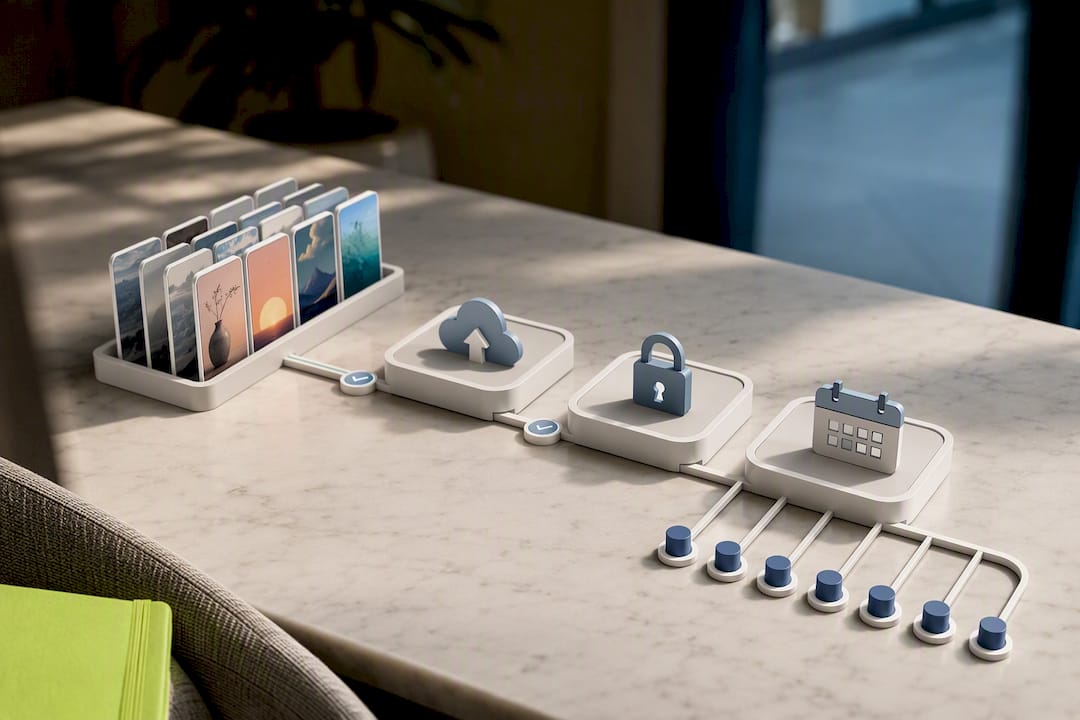
The backbone of any reliable pipeline is OAuth. Instead of relying on session cookies or browser automation, which break the moment YouTube changes a login flow, stable pipelines authenticate with OAuth refresh tokens that can stay valid for long stretches without manual reauthentication. That single design choice is why creators building their own upload scripts favor the YouTube Data API over anything that mimics a browser session.
A typical automated Shorts pipeline runs in six stages:
- Generate or write the script.
- Produce the voiceover or audio track.
- Gather visual assets (stock footage, generated clips, or images).
- Compose the scenes together with captions and timing.
- Render the final vertical video file.
- Upload to YouTube with the visibility set to Schedule and a target timestamp.
Open-source examples make this concrete. One project chains together MoviePy, FFmpeg, and edge-tts for voice generation, then hands the finished file to the YouTube Data API on a cron schedule. Another runs the same upload-and-schedule logic through GitHub Actions, so the entire batch fires on a timer with no server to maintain.
| Setup step | What it involves |
|---|---|
| Google Cloud project | Create a project and enable YouTube Data API v3 |
| OAuth credentials | Generate a desktop or web OAuth client ID |
| Test user | Add your channel's Google account as an authorized tester |
| Auth helper | Run a one-time script to capture your refresh token |
| CI runner | Store the refresh token as a secret in GitHub Actions or your scheduler |
Watch your daily API quota, keep credentials out of public repositories, and check your upload queue regularly. A stuck job in an unattended pipeline can quietly fail for days if nobody's watching.
Scheduling best practices: cadence, timing, and what to measure
Before you schedule anything, sketch the shot outline: a hook in the first second, a clear middle beat, and a close that either pays off the hook or sets up the next video. Skipping this step is the single biggest source of wasted editing time in a batch production run, since a Short with no plan for its opening line rarely survives the first three seconds of viewer attention.
Batching works best when you hold your format steady and vary only the opening. If you're testing whether mornings or evenings perform better for your audience, don't also swap your video style that same week, or you won't know which variable moved the number. Structured 30 day content plans generally recommend this kind of single-variable testing over changing everything at once.
Scheduling itself doesn't hurt initial reach. YouTube treats a scheduled Short the same as a live upload once it goes public; there's no algorithmic penalty for having queued it in advance. What matters more is what happens in the first 48 to 72 hours after it publishes: watch retention, follows gained, and how far it travels beyond your existing subscriber base. If a scheduled Short underperforms in that window, cancel or reschedule the next one in the series rather than assuming the algorithm is punishing you.
How Brainrotify fits into a scheduled Shorts workflow
This tool handles the production side that usually eats the most time, then hands the finished video straight into a publishing calendar. You write a topic or script, and it generates the scenes, voiceover, captions, and vertical render in one pass, covering formats like Reddit-style stories, two-character conversations, and quiz videos.
From there, users can:
- Connect their channels and queue finished videos directly on a content calendar
- Set up an automated series that plans, renders, and publishes new Shorts on a recurring schedule
- Rely on duplicate-detection so the same clip never gets posted twice across a series
Pro Tip: Pair Brainrotify's automated video generation with a fixed weekly cadence rather than posting in bursts. A steady rhythm tends to build audience habits faster than an unpredictable one, even at the same total volume.
When to schedule versus when to publish immediately
Schedule for anything built on cadence, a Reddit-story series, a recurring meme format, a weekly explainer. Consistency compounds; a channel posting three times a week at fixed times outperforms one that posts erratically, even at similar total output.
Publish immediately when you're reacting to something happening right now, a trending sound, a news moment, a viral format window that closes in days. Scheduling a reaction video for tomorrow often means missing the wave entirely.
The risk with full automation is quality drift: a pipeline that never gets a human glance can quietly repeat itself. Keep a lightweight review step even in a scheduled series.
— Lucas
Try Brainrotify to generate, batch, and schedule Shorts
This tool cuts the production side of Shorts down from hours to minutes, then plugs straight into the scheduling workflow this article just walked through. Instead of writing a script, recording, editing, captioning, and manually uploading each video, users generate the finished vertical Short and queue it directly, with no separate editing software or manual export step.
For creators running a series instead of a one-off, the Batch Video Generator produces multiple Shorts from a single content plan and lines them up on your calendar so nothing gets posted twice. If you're ready to stop rebuilding your production process every week, start a batch and see how many Shorts you can queue in one sitting.
Sources
For the exact scheduling controls covered above, YouTube's own Shorts upload and scheduling guidance is the authoritative source, and it's updated as the interface changes. If you're building an automated pipeline, the Auto_You and autopilot-shorts repositories are worth studying directly, since both document their API and OAuth setup in full.
- Upload schedule tips - Shorts - YouTube Help
- Can You Schedule YouTube Shorts? Yes — Here's How
- codesarthak/autopilot-shorts (GitHub) — automated YouTube Shorts pipeline
- Napkyn
FAQ
Does scheduling Shorts on YouTube affect views?
No, a scheduled Short performs the same as one published live once it goes public. Reach depends on retention and engagement after publish, not on whether it was scheduled in advance.
What is the 7 second rule on YouTube?
It refers to the idea that viewers decide whether to keep watching within the first few seconds of a Short, which is why the opening hook matters more than any other single element of the video.
How many views do you need on YouTube Shorts to make $10,000?
There's no fixed view count, since Shorts revenue depends on ad rates, audience location, and how views are split across creators in the Shorts feed, which varies month to month. Consistent upload cadence and strong retention affect earnings more directly than chasing a specific view target.
How much money is 1,000,000 views on YouTube Shorts?
Earnings from a million Shorts views vary widely based on niche, audience region, and current ad rates, so there's no single reliable dollar figure to quote. Channels focused on consistent, retention-strong content tend to see steadier returns than those chasing one viral clip.
Can this tool schedule Shorts automatically without manual uploads?
Yes, it supports connecting your channel and setting up an automated series that generates, renders, and publishes new Shorts on a recurring schedule without repeat manual uploads.